
How to Bid Online
Bidding in our online auctions is easy once you know where everything is. We use the BidWrangler online bidding platform, which lets you bid from a computer, tablet, or smartphone. This guide walks you through the basic steps of creating an account, registering for an auction, and placing bids.
1. Create Your Bidder Account
Before you can bid, you will need a bidder account on our online bidding platform.
- Go to our bidding platform and click “Sign In” or the menu icon in the upper right corner.
- Select the option to create a new account if you are a first-time user.
- Enter your name, email address, and a password, then agree to the terms of use.
- Check your email for any confirmation message and sign in to your new account.
Once your account is created, you can log in any time to view auctions, place bids, and check your bidding history.
2. Register for a Specific Auction
Each auction requires its own registration. This helps us confirm that you have read the auction terms and understand the pickup location and dates.
- From the bidding platform, find the auction you are interested in.
- Click “View Auction,” then look for the “Register to Bid” button.
- Complete the registration form with your contact information.
- You may be asked to enter a credit or debit card for identity verification.
- Agree to the auction’s terms and submit your registration.
Some auctions approve registrations automatically; others require manual approval by our staff. If approval is needed, you will receive an email once you are cleared to bid.
3. Find the Item You Want to Bid On
After you are registered for the auction, you can browse all lots in that event. Use the search box, filters, or category list (if available) to locate items you are interested in. Click on any item to see more photos, descriptions, and the current bid.
4. Three Ways to Place a Bid
BidWrangler gives you several options for placing bids on an item. All of them start with the main bid button you will see on each lot.
A. Bid the Current Asking Price
This is the simplest option. The bid button shows the next amount the system is asking for.
- Click or tap the main bid button that displays the next bid amount.
- A confirmation box will appear. Confirm your bid to submit it.
- Once accepted, the system records your bid and shows you as the high bidder until someone else bids higher.
B. Place a Max Bid
A max bid tells the system the highest amount you are willing to pay for an item. The system will then bid for you, using the auction’s bid increments, only as needed to keep you in the lead. This is helpful if you cannot watch the auction as it closes or are bidding on many items at once.
- Click the small arrow or menu icon next to the main bid button.
- Select the option to set a max bid.
- Enter the maximum amount you are comfortable paying for the item.
- Confirm to save your max bid.
Other bidders will not see your max bid amount. They will only see the current high bid, which increases as competing bids come in. :contentReference[oaicite:0]{index=0}
C. Bid a Specific Amount
Some auctions allow you to enter a custom bid rather than using the exact asking amount.
- Click the arrow or menu icon next to the main bid button.
- Choose the option to bid a specific amount (or similar wording).
- Type in the bid you want to place, as long as it meets or exceeds the minimum allowed bid.
- Confirm to submit your custom bid.
If this option is not available in a particular auction, it means the feature has been disabled for that event by the auction company. :contentReference[oaicite:1]{index=1}
5. Understanding Soft Closing
Most of our online auctions use a “soft close” feature. If a bid is placed in the final seconds before an item is scheduled to close, the system adds extra time to allow other bidders a chance to respond. This works much like an auctioneer saying “going once, going twice” and keeps the process fair for everyone.
The auction listing will show the time remaining for each lot, and that time may extend when active bidding continues near the end.
6. Watching Items and Checking Your Bids
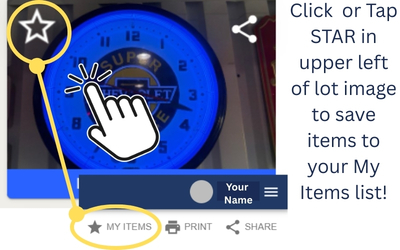
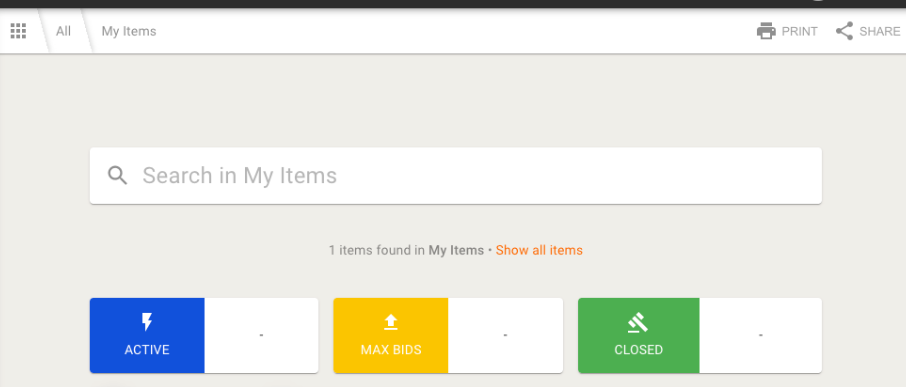
You can usually mark items as favorites or add them to a “My Items” list inside the bidding platform. This makes it easy to return to them quickly as the auction progresses. You can also review your active bids and invoices under your account once you are logged in.
7. After You Win
When an auction ends, winning bidders receive an invoice by email. The invoice includes your winning bids, buyer’s premium, applicable taxes, and detailed pickup instructions.
- Payment is due according to the terms listed in each auction.
- Pickup dates and locations are included in the auction description and on your invoice.
- Items not picked up during the scheduled time may be forfeited as outlined in our Online Bidder Terms & Conditions.
Need Help?
If you are unsure about any part of the bidding process, please reach out before you place a bid. We are glad to help you get comfortable with the system. Visit our Bidder Resources page for more help, or use our Contact page to send us your question.





__footer.png?v=1764797111)
__footer.png?v=1764797093)